Microsoft SCCM Installation
Install using Microsoft System Center Configuration Manager (SCCM)
To automate your Sensor deployment, download the latest Sensor and copy the CLI command from the Cyberhaven Console.
Log into the Cyberhaven Console and go to the Endpoint Sensors page.
Click on the Sensor Installers drop-down menu and download the latest version of the .msi package.
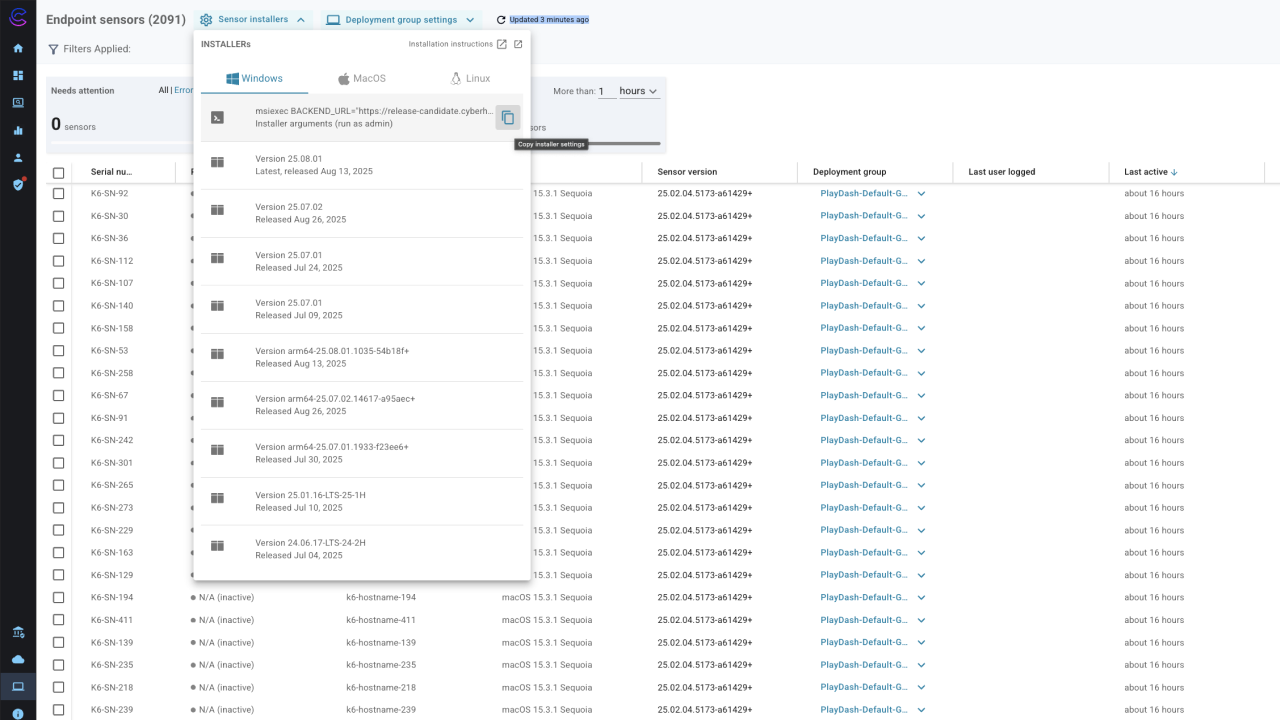
Copy the msiexec command to install the Sensor. The command format is as follows:
msiexec BACKEND_URL="<your-tenant-url>" INSTALL_TOKEN=<cyberhaven-generated-token> /qn /norestart /i Cyberhaven-<add sensor-installer-version-here>.msi(Optional) To immediately add devices to a specific deployment group during the sensor installation, click on Deployment Group Settings. Then, click on Install Config > Windows to copy the command associated with a specific deployment group. If you don’t specify a deployment group, the devices are automatically assigned to the “Default” group.
The command format is as follows:
msiexec BACKEND_URL="<your-tenant-url>" INSTALL_TOKEN=<cyberhaven-generated-token> INITIAL_DEPLOYMENT_GROUP_ID=1 /qn /norestart /i Cyberhaven-<installer-version>.msi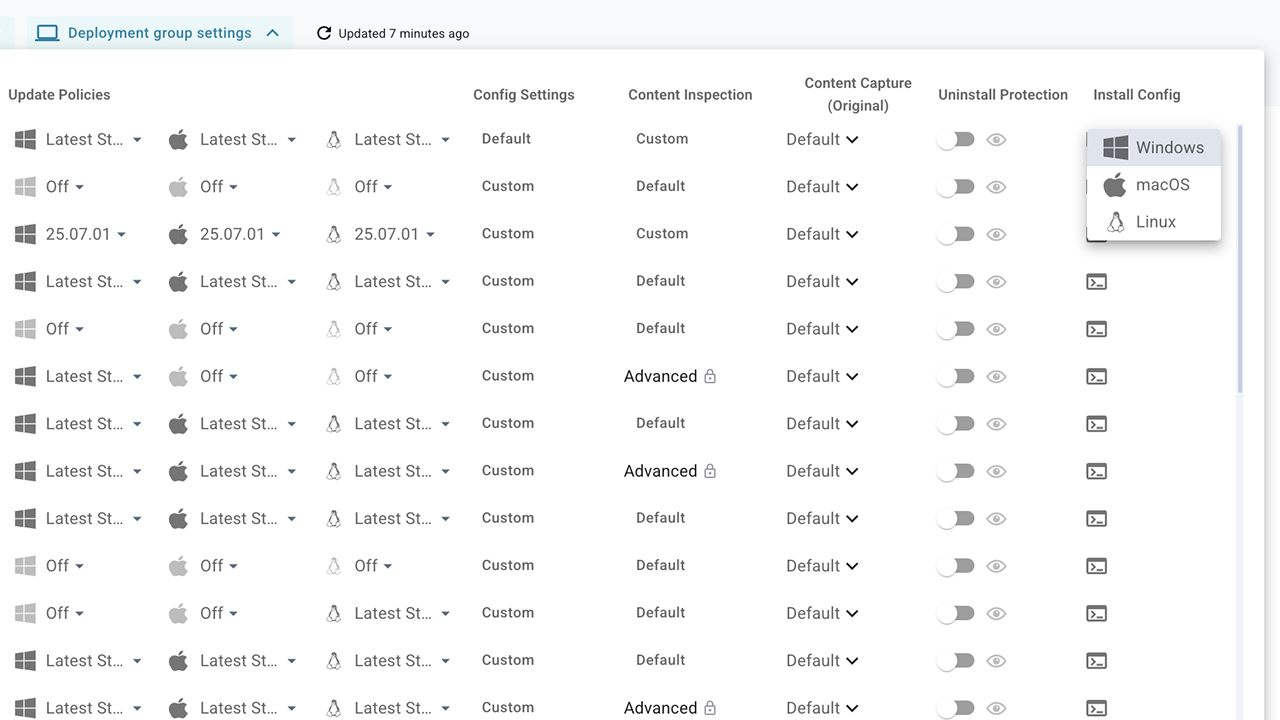
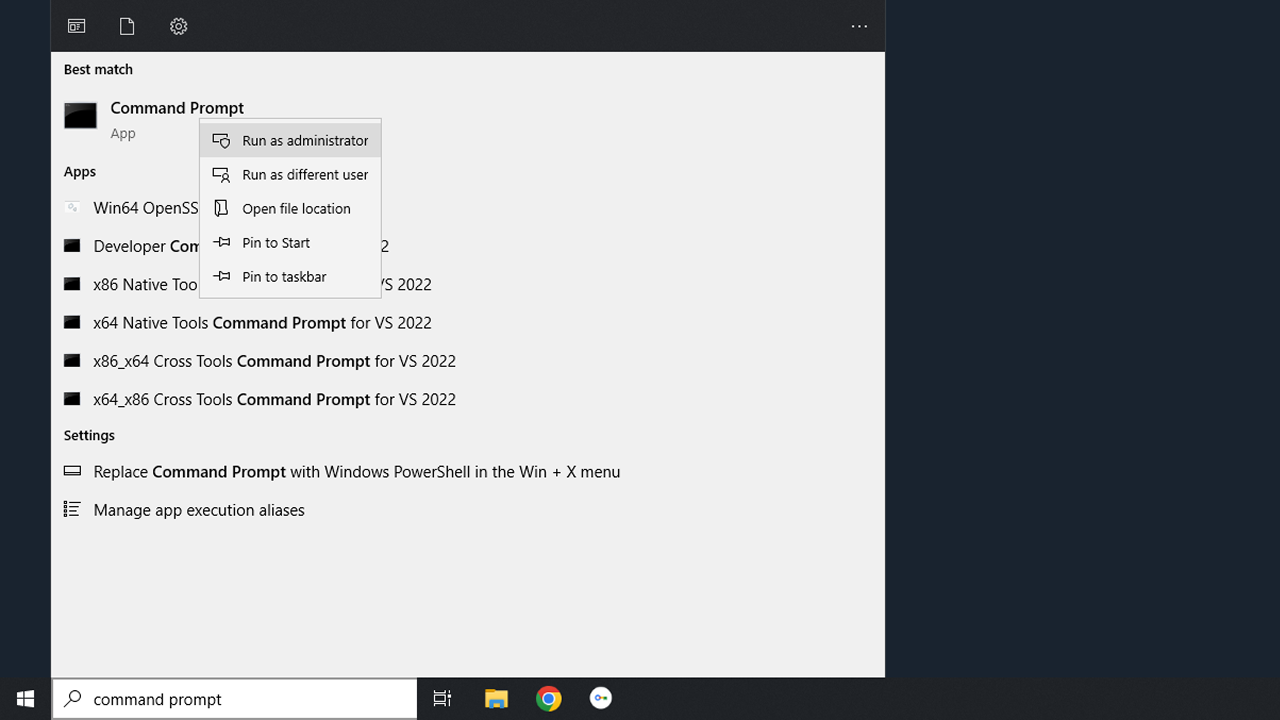
Open Command Prompt as an administrator.
Navigate to the directory that contains the .msi package.
Paste the command into the CLI and edit the command to include the installer version. Ensure that the file name matches the installer package you downloaded in step 2.
The following is an example command:
msiexec BACKEND_URL="https://release2.cyberhaven.io" INSTALL_TOKEN=eyJhbI.eyJp0YW.3MDwn0.i6Zeax /qn /norestart /i Cyberhaven-24.09.06.9660-3aec1e+.msiDeployment tools will automatically pass the /qn argument to deploy silently.